Customizing CKAN’s JavaScript
JavaScript code in CKAN is broken down into modules: small, independent units of JavaScript code. CKAN themes can add JavaScript features by providing their own modules. This tutorial will explain the main concepts involved in CKAN JavaScript modules and walk you through the process of adding custom modules to themes.
See also
This tutorial assumes a basic understanding of CKAN plugins and templating, see:
See also
This tutorial assumes a basic understanding of JavaScript and jQuery, see:
See also
- String internationalization
How to mark strings for translation in your JavaScript code.
Overview
The idea behind CKAN’s JavaScript modules is to keep the code simple and easy to test, debug and maintain, by breaking it down into small, independent modules. JavaScript modules in CKAN don’t share global variables, and don’t call each other’s code.
These JavaScript modules are attached to HTML elements in the page, and enhance the functionality of those elements. The idea is that an HTML element with a JavaScript module attached should still be fully functional even if JavaScript is completely disabled (e.g. because the user’s web browser doesn’t support JavaScript). The user experience may not be quite as nice without JavaScript, but the functionality should still be there. This is a programming technique known as graceful degradation, and is a basic tenet of web accessibility.
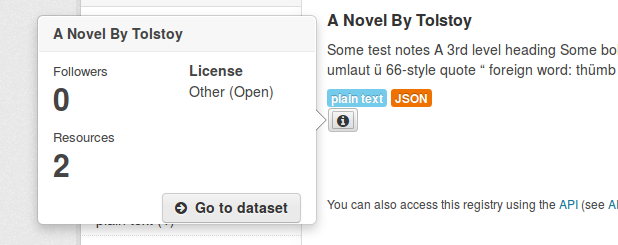
In the sections below, we’ll walk you through the steps to add a new JavaScript feature to CKAN - dataset info popovers. We’ll add an info button to each dataset on the datasets page which, when clicked, opens a popover containing some extra information and user actions related to the dataset:
Initializing a JavaScript module
To get CKAN to call some custom JavaScript code, we need to:
Implement a JavaScript module, and register it with CKAN. Create the file
ckanext-example_theme/ckanext/example_theme_docs/assets/example_theme_popover.js, with these contents:// Enable JavaScript's strict mode. Strict mode catches some common // programming errors and throws exceptions, prevents some unsafe actions from // being taken, and disables some confusing and bad JavaScript features. "use strict"; ckan.module('example_theme_popover', function ($) { return { initialize: function () { console.log("I've been initialized for element: ", this.el); } }; });
This bit of JavaScript calls the
ckan.module()function to register a new JavaScript module with CKAN.ckan.module()takes two arguments: the name of the module being registered ('example_theme_popover'in this example) and a function that returns the module itself. The function takes two arguments, which we’ll look at later. The module is just a JavaScript object with a single attribute,initialize, whose value is a function that CKAN will call to initialize the module. In this example, the initialize function just prints out a confirmation message - this JavaScript module doesn’t do anything interesting yet.Note
JavaScript module names should begin with the name of the extension, to avoid conflicting with other modules. See Avoid name clashes.
Note
Each JavaScript module’s
initialize()function is called on DOM ready.Include the JavaScript module in a page, using Assets, and apply it to one or more HTML elements on that page. We’ll override CKAN’s
package_item.htmltemplate snippet to insert our module whenever a package is rendered as part of a list of packages (for example, on the dataset search page). Create the fileckanext-example_theme/ckanext/example_theme_docs/templates/snippets/package_item.htmlwith these contents:{% ckan_extends %} {% block content %} {{ super() }} {# Use Webassets to include our custom JavaScript module. A <script> tag for the module will be inserted in the right place at the bottom of the page. #} {% asset 'example_theme/example_theme' %} {# Apply our JavaScript module to an HTML element. The data-module attribute, which can be applied to any HTML element, tells CKAN to initialize an instance of the named JavaScript module for the element. The initialize() method of our module will be called with this HTML element as its this.el object. #} <button data-module="example_theme_popover" class="btn" href="#"> <i class="fa fa-info-circle"></i> </button> {% endblock %}
See also
Using data-* attributes on the Mozilla Developer Network.
If you now restart the development server and open http://127.0.0.1:5000/dataset in your web browser, you should see an extra info button next to each dataset shown. If you open a JavaScript console in your browser, you should see the message that your module has printed out.
See also
Most web browsers come with built-in developer tools including a JavaScript console that lets you see text printed by JavaScript code to
console.log(), a JavaScript debugger, and more. For example:If you have more than one dataset on your page, you’ll see the module’s message printed once for each dataset. The
package_item.htmltemplate snippet is rendered once for each dataset that’s shown in the list, so your<button>element with thedata-module="example_theme_popover"attribute is rendered once for each dataset, and CKAN creates a new instance of your JavaScript module for each of these<button>elements. If you view the source of your page, however, you’ll see thatexample_theme_popover.jsis only included with a<script>tag once. Assets is smart enough to deduplicate resources.Note
JavaScript modules must be included as Assets resources, you can’t add them to a
publicdirectory and include them using your own<script>tags.
this.options and this.el
Now let’s start to make our JavaScript module do something useful: show a Bootstrap popover with some extra info about the dataset when the user clicks on the info button.
First, we need our Jinja template to pass some of the dataset’s fields to our
JavaScript module as options. Change package_item.html to look like
this:
{% ckan_extends %}

{% block content %}
  {{ super() }}
  {% asset 'example_theme/example_theme' %}

  {# Apply our JavaScript module to an HTML <button> element.
    The additional data-module-* attributes are options that will be passed
    to the JavaScript module. #}
  <button data-module="example_theme_popover"
          data-module-title="{{ package.title }}"
          data-module-license="{{ package.license_title }}"
          data-module-num_resources="{{ package.num_resources }}">
    <i class="fa fa-info-circle"></i>
  </button>
{% endblock %}
This adds some data-module-* attributes to our <button> element, e.g.
data-module-title="{{ package.title }}" ({{ package.title }} is a
Jinja2 expression that evaluates to the
title of the dataset, CKAN passes the Jinja2 variable package to our
template).
Warning
Although HTML 5 treats any attribute named data-* as a data attribute,
only attributes named data-module-* will be passed as options to a CKAN
JavaScript module. So we have to named our parameters
data-module-title etc., not just data-title.
Now let’s make use of these options in our JavaScript module. Change
example_theme_popover.js to look like this:
"use strict";

/* example_theme_popover
 *
 * This JavaScript module adds a Bootstrap popover with some extra info about a
 * dataset to the HTML element that the module is applied to. Users can click
 * on the HTML element to show the popover.
 *
 * title - the title of the dataset
 * license - the title of the dataset's copyright license
 * num_resources - the number of resources that the dataset has.
 *
 */
ckan.module('example_theme_popover', function ($) {
  return {
    initialize: function () {

      // Access some options passed to this JavaScript module by the calling
      // template.
      var num_resources = this.options.num_resources;
      var license = this.options.license;

      // Format a simple string with the number of resources and the license,
      // e.g. "3 resources, Open Data Commons Attribution License".
      var content = 'NUM resources, LICENSE'
        .replace('NUM', this.options.num_resources)
        .replace('LICENSE', this.options.license)

      // Add a Bootstrap popover to the HTML element (this.el) that this
      // JavaScript module was initialized on.
      this.el.popover({title: this.options.title,
                       content: content,
                       placement: 'left'});
    }
  };
});
Note
It’s best practice to add a docstring to the top of a JavaScript module, as in the example above, briefly documenting what the module does and what options it takes. See JavaScript modules should have docstrings.
Any data-module-* attributes on the HTML element are passed into the
JavaScript module in the object this.options:
      var num_resources = this.options.num_resources;
      var license = this.options.license;
A JavaScript module can access the HTML element that it was applied to
through the this.el variable. To add a popover to our info button, we call
Bootstap’s popover() function on the element, passing in an options object
with some of the options that Bootstrap’s popovers accept:
// Add a Bootstrap popover to the HTML element (this.el) that this
// JavaScript module was initialized on.
this.el.popover({title: this.options.title,
                 content: content,
                 placement: 'left'});
See also
For other objects and functions available to JavaScript modules, see Objects and methods available to JavaScript modules.
Default values for options
Default values for JavaScript module options can be provided by adding an
options object to the module. If the HTML element doesn’t have a
data-module-* attribute for an option, then the default will be used
instead. For example…
Todo
Think of an example to do using default values.
Pubsub
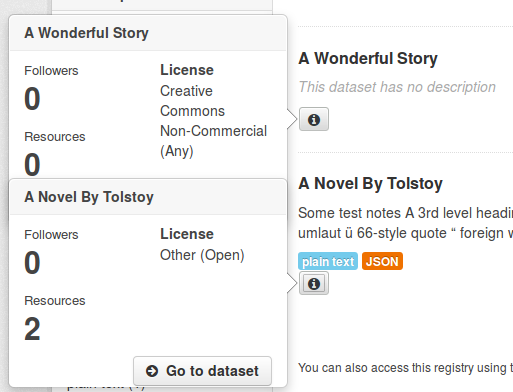
You may have noticed that, with our example code so far, if you click on the info button of one dataset on the page then click on the info button of another dataset, both dataset’s popovers are shown. The first popover doesn’t disappear when the second appears, and the popovers may overlap. If you click on all the info buttons on the page, popovers for all of them will be shown at once:
To make one popover disappear when another appears, we can use CKAN’s
publish() and
subscribe() functions. These pair of functions
allow different instances of a JavaScript module (or instances of different
JavaScript modules) on the same page to talk to each other.
The way it works is:
Modules can subscribe to events by calling
this.sandbox.client.subscribe(), passing the ‘topic’ (a string that identifies the type of event to subscribe to) and a callback function.Modules can call
this.sandbox.client.publish()to publish an event for all subscribed modules to receive, passing the topic string and one or more further parameters that will be passed on as parameters to the receiver functions.When a module calls
publish(), any callback functions registered by previous calls tosubscribe()with the same topic string will be called, and passed the parameters that were passed to publish.If a module no longer wants to receive events for a topic, it calls
unsubscribe().All modules that subscribe to events should have a
teardown()function that unsubscribes from the event, to prevent memory leaks. CKAN calls theteardown()functions of modules when those modules are removed from the page. See JavaScript modules should unsubscribe from events in teardown().
Warning
Don’t tightly couple your JavaScript modules by overusing pubsub. See Don’t overuse pubsub.
Internationalization
Testing JavaScript modules
Todo
Show how to write tests for the example module.